Showing posts with label Troubleshooting. Show all posts

Friday, 15 February 2019

Fruity Tips #3 - Got a Slow Boot Problem On A MacBook Pro?

My love affair with my new refurbished 2017 15" MBP was on the verge of needing a trip to Relate recently. Whilst it has been a brilliant performer and has easily coped with everything I've thrown at it over the past three months, it has had something of a teenage strop in the last few weeks. It has been taking ages to reboot and be ready for me to start to do any actual work.


I'm used to Windows machines taking an age between powering them up and being able to do anything productive - that was the primary motive for me making the move to a Mac. And I've never had any problems with MacBook Airs or iMacs in respect of boot time. Even the latest addition to the Apple Harvest was fine until a few weeks back. And then it suddenly started taking an age to reboot. I'd get the Apple logo and progress bar which would get to about 60-70% and then hang. I'd power down and re-power and the same thing would happen.

I hate it when this kind of problem occurs because you usually know it's going to take a lot of sleuthing and pain to find the root cause. And it's almost certainly going to take a lot of time and patience (and as I get older, patience is sometimes in short supply).

I started off with all the usual experiments:

  • Reboot in Safe Mode - the outcome was even worse. I nearly wore out my fingertips waiting for the logo to appear
  • Reset SMC - no change
  • Reset PRAM - no change
  • Reboot into recovery - result!
Once in recovery, I could at least test the SSD using disk utility and this showed there were no problems (but indicated there were 9 APFS snapshots, each of which took an age to verify). In addition, with access to the Terminal app, I also set the boot arguments to automatically start up in Safe mode and with verbose output. I started the laptop and retired to a safe distance rather than sitting there watching it and being tempted to interfere. I returned after about an hour and the MBP was indeed booted into Safe mode. Phew! I becoming was less concerned that this was a hardware issue and more of a software or configuration problem. I reset the boot argument and started again.

A reboot into Safe mode is sometimes all that is needed to fix a teething problem, but not so in this case. When I restarted in normal mode I still had the same problem. This time I left the laptop to its own devices and it took over twenty minutes to get to the login screen. In theory,  I could have things as they were. I generally keep my MacBook powered on, just putting it to sleep every night and waking it up every morning using a schedule set up in Power Manager. I only switch off the machine on a Saturday night, again, using an automated schedule which then wakes it early on Sunday morning. Since the machine is set to switch on before I wake up, I wouldn't see how long it takes to boot! Out of sight, out of mind, so to speak. 

But I already knew it was a problem, so I needed to resolve it. It's just the way I am, and who knows, it could be hiding a bigger problem just waiting to happen. Next step was to reinstall Mojave. I have a USB installation drive for such contingencies, so I booted that up (it booted almost instantly) and ran the installation. 

Still no improvement on the boot time. But since the USB drive boot was quick, it was becoming clearer that this was now either a problem with the SSD, which I deemed unlikely or it was a third party software configuration issue.

I started searching for similar reports of poor boot times and was kind of relieved to find I was far from alone. A boot time of twenty minutes was far from uncommon. One particular discussion on the Apple support forum ran to twenty-three pages (with no obvious resolution). One area that caught my attention was that the APFS snapshots could have been responsible and I went back to verbose mode to see if this was a problem but it turned out to be a red-herring.

Eventually, I happened upon a discussion about Little Snitch and some people reporting that they had isolated their boot time problems to a specific set of releases of Little Snitch. A support query on their web page concerning this problem runs to 7 pages. Since I was into my second weekend of trying to isolate the problem, I was willing to give anything a go, so I disabled Little Snitch and rebooted. Wham, bam and thank you, mam. I got back to the kind of boot time I was expecting, around 20-30 seconds (I have quite a lot of stuff that gets loaded at boot time). 

To try and prove the point and verify that this was the problem I re-enabled Little Snitch and went back to a twenty-minute reboot. A few days later,  Objective Development who own Litte Snitch released a new version which resolved the problem - a problem that Objective Development say they've been unable to recreate, which I find extraordinary. Nonetheless, Little Snitch 4.3 Build 5256 appears to have fixed the problem...For now at least! 


And it was just in time for Valentine's Day - so the machine and I could continue the love affair and no machines got massacred during the writing of this blog post!


Tuesday, 5 February 2019

Warning: Suspicious User in the Users folder! Don't Panic?

Unless you physically glue up the ports on your computer, remove the wireless chips and all the other input capabilities, no matter how careful you are, it’s still possible to get caught out by unwanted surprises.


I was doing a bit of routine maintenance on my MacBook Pro over the weekend and I noticed an unusual item in the Users folder of my primary disk. At my local supermarket an “Unexpected Item In The Bagging Area” is the grocery shopper’s equivalent of an air raid warning, and is met with shivers, sweaty palms, red faces, and an overwhelming sense of wanting to go and hide in a deep hole. On a Mac, an unexpected User in the Users folder is even worse.

To make it worse, the unexpected user went by the name “tsninja”. Having any sort of ninja lurking, uninvited, on your computer does not bode well, and I immediately started panicking. How long had it been there, how did it get there, what was it doing there, and most importantly, what the heck had it been doing while it had been there.

What sane person creates a User account called 'tsninja'?
Let’s just add some context before going any further. I take precautions. I have firewalls in place, Little Snitch is installed and configured, I don’t spend my time surfing ‘adult’ sites, I have Malwarebytes set up to scan the laptop every day, the computer is protected with ultra-strong passwords and TouchID, and has never been accessible to members of the general public. In other words, it’s about as secure as it can be, within reason. But something had created this intruder user and I wanted to find out what.

Donning my best deerstalker, I began to investigate. Google didn’t proffer any useful indicators. I ran Malwarebytes again but it came up clean. I ran EtreCheck but nothing untoward there. I guess the smartest thing to have done now, would have been to attempt to delete the ‘fake’ user and get on with my life, but I couldn’t let it lie.

So I started to dig down into the tsninja folder, and this is what I found:

User folder tsninja appears to contain MS-Team configuration data
This didn’t look much like a normal User folder. A little further investigation on the internet suggested that the files at the lowest level of folders were configuration data for Microsoft Azure, and everything in the entire tsninja folder was timestamped on the same date and at the same time. Sure enough, I’d installed Microsoft Teams (for research purposes) at about the same time according to the system logs. By this time, some of the panic was beginning to seep away, but I really wanted a second opinion.

I asked some chums on the Mac To The Future (MTTF) Facebook group if they’d encountered anything similar. I got a response pretty quickly saying that they’d used MS-Teams for about six months but couldn’t reproduce the issue. I checked my fiancee's laptop because we’d also installed MS-Teams on her MBA. Nothing was showing up on her machine either. Signs of panic were beginning to reappear. My MTTF FB chums weren’t making any reassuring noises.

I decided to try a brute force experiment. I deleted the whole ‘tsninja’ folder. Interestingly it just let me!  Usually attempting to delete a Users folder would require a password at the very least. Anyhow it was gone, for now.

I relaunched MS-Teams and although it appeared to have to found a glitch it ran as expected. But lo and behold, as soon as I quit the programme, the ‘tsninja’ folder had reappeared in the Users directory. That was too much of a coincidence. But why was it showing up on my system but no-one else’s?

My only guess is that I had set my system up as the host for a Team, with my MBP effectively acting as a server, whereas my fiancée was a member of that team. The guys I was talking to on MTTF were also in a similar situation; they were members of other teams.

Ultimately, we collectively came to the solution that it is just shoddy programming by Microsoft. Despite (or maybe because of) Apple’s guidelines about where application support data files should be stored, Microsoft have a history of doing their own thing. In this instance, it’s cost me a bit of time trying to track down the root cause of the problem, and a few more ageing lines. And despite sending messages to the MS-Team product support people, they have declined to reply although I have now joined the MS-Teams community and started the discussion there. I’ll report back on any updates.

For now, I'm comfortable with my own explanation, and I'm not batoning down the hatches. But seriously, for a professional programmer writing business application software, creating a user folder called tsninja and sticking it in a reserved space should be a disciplinary offence. It's childish and unnecessary, and it's cost me a couple of lost days and an uncomfortable night. Time to grow up Micrsoft!


Tuesday, 1 January 2019

Technology Would Work Perfectly If It Wasn't For End-Users!

As we start another new year, I’ve been intrigued by a few discussions I’ve been party to during recent days. One was about upgrading to Mojave (macOS 10.14) and the other was about a smart home system that is very popular in the UK called Hive. The conversations were quite different yet they shared some key similitudes. Both indicated that there are large numbers of people who make key decisions about technical matters by casually surfing the internet and reading negative comments, primarily on social media.

In the two specific discussions I’m referring to, both on Facebook, the original posters were inclined to ignore the good advice and being swayed by both ill-informed suggestions or by completely misinformed statements.


By the end of 2019, it will have been thirty years since I first touched a computer. Strictly speaking, it wasn’t even a computer; it was a dumb terminal attached to a mainframe system in a different part of the city. Since that October day, I’ve witnessed staggering changes in the IT industry which I have ended up spending my life in.

The biggest difference, of course, is that back then, computers were anything but the consumer units that they have become today. The MBP that I’m writing this on is many orders of magnitude more powerful than the old ICL1900 I first used. In those days, before the infinite wisdom of the public was harnessed into the ultimate truth of today’s internet, if you had a problem you had to figure out a solution yourself. And so it has been for most of my working life. In general, you had to programme your way out of problems. Even today, many teething computer problems can be overcome with a bit of imagination and a couple of useful tools. Luckily, some of the smart people who write some of these tools are also generous enough to hang out on the internet and provide amazing advice to those of us who are prepared to do a bit of work and actually think about a problem rather than just expecting someone else to fix it for us.

Whenever you get a new Mac (or upgrade to a new OS) there are often a few things that don’t work quite the way they did. In an ideal world, you’d have the wherewithal to dig down and find out the root cause of the problem and fix it. Sadly, most of us don’t have that luxury these days. I recently found that my new MBP had a minor problem when it auto-switches from  Light to Dark modes (using NightOwl). For some reason, this switch forces a Finder restart and this, in turn, means that TotalFinder terminates. My solution was to use Keyboard Maestro to build a macro so that whenever Finder restarts, TotalFinder will automatically restart as well. It’s a seamless action and I don’t have to do anything.

My point is, that with a bit of imagination and a few readily available tools we can get over niggling problems with fairly simple workarounds. Sure, it took me a couple of hours to isolate the problem, research potential fixes and eventually create my own but was that a good enough reason not to upgrade to Mojave and solve a whole bunch of other problems. Clearly not. But many people out there seem to be looking for excuses not to do things which are pretty much common sense. And they are aided and abetted by others who are determined to make things worse - like the guy who stated that Mojave will not run 32-bit apps. Funny, that, because my version does!

After reading about the person who decided that they had read so much bad press about Hive in a Facebook Hive and Nest forum that they were going to go with a completely different system, I was reminded about the recent reviews I read on Amazon about products I have purchased and found worked perfectly. Although technology has become more prevalent in our homes and daily lives, the majority of people still don’t have any idea about how it works, how to install it correctly, or how to use it correctly. In many cases, they don’t even know why they’ve bought it. “I’ve just bought an Apple Watch - what does it do?”….

So it’s easy for people to buy something, plug it in and then sit back and complain that it doesn’t work rather than actually take the trouble to do it properly. Much of our technology is still emergent - it doesn’t always work exactly as it should, but for many people, it does for most of the time. They just don’t tell the rest of us, because they are quite happy getting on and using the time they’ve saved to do something interesting rather than whine and criticise things they simply don’t understand!

Are problems with Apple kit on the increase? Probably not. But there are now 100,000,000 Mac users all of whom have access to the internet and many of whom are all too ready to bad mouth the technology when it doesn’t work the way they expect. So problems become exaggerated and other people believe the negative hype.

For the record, I have Hive installed in my house and recently we installed it in my fiancee's house. 99% of the time it works perfectly, and I’d be happy to recommend it to a prospective buyer.

For many years I’ve held the belief that if end-users didn’t exist there wouldn’t be any issues with technology. That’s never truer than now!

Happy New Year!


Tuesday, 26 April 2016

That Moment When...You Think Your SSD is Dead

I use Power Manager to automatically start (and power down) my new MacBook Air at various times on weekdays and with a different schedule at the weekend. Recently, however, the system has got stuck during the boot process and the first thing I see on the screen is the Apple logo with the half completed status bar underneath. I expect to see a fully operational Mac. Usually, it's enough to restart the machine, but today was different.

Today nothing happened on the restart. Nothing, nada, nil, The speakers attached to the device lit up briefly and then the laptop powered right back down again. And again.

I tried various power up options, safe boot - nothing, clear PRAM - nothing, Diagnostics - nothing. Eventually I tried the Recovery mode and that worked, so my first port of call was Disk Utility. Running First Aid on the flash drive indicated that it was OK, but subsequently running the tool on the start-up partition repeatedly failed. I was starting to get a bit nervous, especially given this was a four month old MBA.


Since I run a reasonably effective back-up routine, with a weekly clone in addition to a default Time Machine backup I decided that I could afford to be a bit aggressive in trying to resolve the problem so I opted to reformat the flash drive partition. This also repeatedly failed. I was beginning to think that a visit to the repair shop was on the cards, especially as I was running out of time before having to leave for work.

I closed down the MBA and shoved it in my bag and headed off to the office for the day. There isn't an Apple Store in Prague yet, and although there are Apple certified resellers and repair outfits, my MBA is my most valuable possession here, and I really did not like the idea of parting with it for even a couple of days. So I was determined to fix the problem myself.

During my breaks in the office I tried a few more tricks, and eventually I managed to format the flash drive completely, not just the start-up partition. Of course, this wiped the disk completely so the next time the machine restarted I was presented with an icon of a question mark in a folder. Unfortunately I couldn't get access to the guest WiFi in the office as it needs a browser to log in which meant an internet recovery was not going to happen. So, for the rest of the working day, I was stuck. I got copies of my invoices, proof of purchase and Apple Care documents printed out, just in case, and eventually headed off home. It was Friday, and I had visions of a long night ahead.


Once back at the Pent-Palace (my nickname for Apple Harvest HQ for this trip) I switched on the laptop and launched it into Recovery mode once more. To my relief it worked without any problems. I checked the flash drive again and no errors were reported. An empty partition was already set up and I chose to restore the most recent backup. Everything went according to plan (prayer?) and about three hours later the contents were restored. I rebooted and things started looking good.

But there's always a catch. Once I hooked up the OWA Thunderbolt 2 dock, which included access to a 4 Tb external drive, Ethernet network and second monitor and rebooted both screens were blank. I tried again with the same outcome. Booting into the laptop without connecting the dock was fine, and then reconnecting the dock was fine. So, theoretically, all the hardware was working, all the cables were fine, and all the software was fine.

In the end, I decided to let it be and left things to settle down overnight. First thing in the morning, I rebooted with everything connected and lo and behold - it all worked perfectly.

The bad news is that I have no idea what caused the problem in the first place. Any console logs are long since destroyed. The only clue was in disk utility which seemed to hint that there was a corrupt directory entry on the start up partition, but as to what caused it, I have no idea.

But happily I didn't need to call on the engineers and I didn't even lose any sleep over the problem.


Sunday, 17 April 2016

iTunes - Time for A Major Makeover

Just over four years ago I posted an article about iTunes and how I'd spent a week trying to recover from a series of iTunes induced cock-ups. Following the latest update to 12.3.3 I've spent another week trying to recover from another set of iTunes induced cock-ups.


If iTunes was an old pet we would probably have taken it to the vet by now and put it out of its misery. Sadly Apple doesn't perceive iTunes as old pet but some kind of sacred cow which must be kept alive in its current state regardless of its pain. In fact, iTunes is turning into a kind of dangerous dog, like a Pit Bull Terrier, which should be put to sleep before it inflicts both physical and mental damage to its owner.

Years ago, when I was cutting code we had a similar problem with our commercial set of programmes. They had  originally been written for the MS-DOS platform, then hurriedly converted to Windows 3 and were constantly being expanded and modified. After about five years we took the decision to call it a day and re-architect and re-engineer the entire portfolio before it imploded and became impossible to salvage. There was a business requirement as well as a technical requirement, in that a new bunch of players had come into the market and were starting from scratch, making our offerings looking tired, slow and very sad.

It really is time that Apple took a similar approach with iTunes. The whole platform needs re-architecting and re-engineering in order to make it a better solution for it customers. Many iTunes users, like myself, don't really have the luxury of moving to a different solution. My music library, which relies heavily on playlists, iMatch (and more recently Apple Music) now stands at about 45,000 songs. The video library of films and TV shows is just over a terabyte. The whole library consumes about 1.7Tb. And just like our old portfolio, iTunes has grown out of control and has been showing signs of imploding for at least four years. The rate of decline is now growing even faster, and it's time to take urgent action.

So, what is behind this latest call for an iTunes re-design?

After the 12.3.3 update I had a few teething problems with my music library. (As an aside, and to be fair, the video and TV libraries don't appear to have been affected, but then again, I tend not to pay so much attention to them). These teething problems then turned into a big, big, problem. A 54Gb problems to be precise. For some reason, during the update, the options to use Apple Music and iCloud Music Library were deselected. Every time I tried to re-enable them iTunes would crash. Eventually I signed out of iTunes and signed in again. I could now enable the two options, but to my horror about half my Apple Music downloads were now showing as not downloaded. They hadn't been deleted from the hard drive, but they were definitely missing in iTunes.

The only obvious way to fix this was to delete the problem albums and redownload but this meant going through every folder in my Apple Music library to find out the offending items, and then spending hours doing the downloads. There had to be a better way - I just had no idea what it was. So I got in touch with Apple iTunes Support via Twitter. We spent the next three days going nowhere as they asked me question after question about my setup - which I'd already explained right at the start. I felt completely patronised, and in the end they couldn't help anyway. I not even sure they understood the problem.

I now realise that I'm not the only one with problems - and to be honest I actually feel quite lucky. At least I have a workaround to fix my problem. It would appear that there a many folk out there who don't, short of starting from scratch (or abandoning iTunes altogether).

iTunes does not play well when it's trying to do too many things. The program should be streamlined into its components at least - Apple Music, Apple Video and the Apple Store. iTunes doesn't play well with large music libraries and the system should be more rigorously tested against very large libraries, which I think will become increasingly common with Apple Music. Apple Tunes Match is still suffering from bugs reported over four years ago - once or twice a week I have to clean up my music library to eliminate the issue of songs with a valid last played days but a zero play count. Even as I write this, over 14500 songs are showing this erroneous attribute. Additionally, most people need external storage for their media libraries because of their sheer size, and I'm sure that this is one of the major contributing factors in iTunes failures - the programme simply wasn't optimised to work with external volumes. This is a critical aspect that needs addressing.

Given that iTunes is probably one of the three most used of the stock OS X applications, along with Safari and Mail, it's about time that it worked without so many problems.

I've now fixed the issue with my library but it has been time consuming and painful. I have a relatively slow internet connection in Prague, but at least it is unlimited. If I been on a capped service, I might still be trying to resolve the problem into next year! But how I miss my 200Mbps connection at Apple Harvest HQ!


Friday, 11 July 2014

The Urge to Tinker and The Domino Effect of IT Problems

Ever had one of those weekends when just about everything related to your home office that could go wrong does, and as a result of trying to fix the issues you end up causing more harm than good?

If your response was "no", then either you are very lucky, exceptionally skilled and methodical, or just plain fibbing!


I recently had the IT weekend from hell. It started on Friday when I realised that Mail wasn’t saving a new Smart Mailbox that I’d created. It got worse on Saturday when I couldn’t get internet access, and on Sunday evening when I lost my entire network I was ready to give it all up and start knitting for a living. In each of these three cases it turned out that the initial problem was not of my doing, but my actions compounded the problems, leading to a domino effect of perceived problems, which I then tried to address causing a vicious circle of IT cock-ups.


Let’s time shift back to Friday. I use Smart Mailboxes a lot. Despite some of my past whinges about Apple Mail, Smart Mailboxes are a simply brilliant and how I’ve missed them in having had to use Outlook for Windows for the last couple of months. On Friday I set up a new Smart Mailbox to manage all the email for my current contract. It only had three conditions so nothing too complex - but I noticed that when I quit mail the new mailbox was missing. This was repeatable behaviour so needed investigating.

There was some indication on the Internet oracle that it was a permissions issue. And since the Smart Mailbox plists in the Mail folder didn’t appear to be getting updated this seemed plausible. However, my Mail is stored on my SD Card (see Bulk Out Your MBA Storage) and the repair permissions button on DiskUtility is greyed out. So, I stopped worrying about my Smart Mailboxes problem and focus on trying to fix the permissions on my SD card. This involved all sorts of shenanigans (including buying a USB card reader) which I won’t go into now, but I couldn’t resolve the problem, and I was beginning to think this wasn’t the cause of my Smart Mailbox problem. But that was now going to have to wait until Saturday as it was time to travel back home for the weekend.

We were up bright and early on Saturday morning and I was all psyched for a couple of hours of troubleshooting with the full benefits of fast home broadband (as opposed to the mobile kind). I fired up Safari and most of my default tabs failed to load - my uStart home page was fine, Twitter, Facebook and LinkedIn were all down, Amazon was OK, others were hit and miss. Results weren’t consistent on my iPad - I could see Facebook for example. The network connection looked OK, the wireless seemed to be OK, and one of the boys was playing on the Xbox without any apparent problems. So I rebooted the router which had no effect on anything. I checked the BT Broadband status pages - but couldn’t access them!

For a brief moment I managed to get onto Twitter on my iPad, and it turned out to be a BT Broadband issue with their DNS servers and it was nationwide - although BT weren’t owning up to it. Changing to Google DNS servers helped fix some of the problems; not all of them, but enough to start getting on with resolving my Smart Mailboxes. And at least I now knew that this was a problem beyond my control that I couldn't fix.

In one search I found a reference to the Mail Tags plug-in which had been causing some problems with Smart Mailboxes. I duly removed Mail Tags and the problem was resolved. Re-installing Mail Tags didn’t appear to have any negative effects, so at least that mystery was solved.

By late Saturday afternoon the problems at BT appeared to have been resolved and normal internet service was resumed. Even though the Smart Mailbox problem was fixed, I’d got it into my head that there was a major problem with the SD Card and it needed fixing. I copied my Mail folder back to the MBA flash drive, cloned the card onto an external hard disk and reformatted it. I then returned the system back to it’s previous state. After various iterations of this and still without any idea of what the problem (or even if there was a real problem) I gave up and went to bed.

Everything seemed to be working normally on Sunday morning so I decided to leave it well alone and enjoy the day. With this new contract, my weekends had become like gold dust, and I didn’t want to waste them on chasing rainbow problems.

But on Sunday evening as I started to get ready for the following week I started having major network problems.  Both the Belkin Thunderbolt hub ethernet connection and my private wireless connection were self-assigning IP addresses and not connecting to the internet. The main household wireless connection was OK, as were all the iDevices in the house, so it wasn’t another BT cock-up. I started wondering about the changes I'd made while investigating yesterday's outage. Bit by bit, I rebuilt the network but nothing made any difference. …Until I unplugged and reconnected the power line connection next to the BT HomeHub and like magic everything started working normally in an instant. I should have known better - I’d restarted the power line connection upstairs but not at the source, where it’s most likely to have a problem.

Once you get into a problem solving mindset you see problems everywhere - even (especially?) where there are none. And sometimes, especially when you are tired and frustrated, you just end up making things worse. A few things can help to stop this mindset clicking in:

  • If the system has been working fine and something goes wrong, look outside the system before you start ‘fixing’ it internally.
  • Keep a checklist of common external problems to look for before you start digging in places that you needn’t be digging
  • Stop digging when you find yourself starting to fix problems that weren’t there previously


Sometimes our urge to tinker is overwhelming and it needs to be controlled. Life’s too short and there are enough problems to deal with, without creating new and imaginary ones!


Thursday, 17 April 2014

I'd Rather Troubleshoot A Mac Than A PC!

Yesterday I lost another day of my life due to my MacBook Air crashing, just four months after the last hiccup (see Mavericks woes). Of course, the problem this time was subtly different to the previous time - the laptop 'died ' late on Monday night. I lost the mouse connection, and then everything else became unresponsive. It was too late to do anything so I switched it off and went to bed, blissfully ignorant of what was to follow the next day!


First thing yesterday morning I snuck into my office and switched on before going for a shower. Twenty minutes later and the gear wheel was still spinning. I rebooted and the same thing happened. So I started working through my check list of curative actions. Here we go....with notes about the action and outcome...
  1. Reboot in Safe Mode (Hold down the Shift key while powering up*) - nothing
  2. Reboot in Verbose Safe Mode (Hold down Shift and Command + V keys while powering up) - nothing
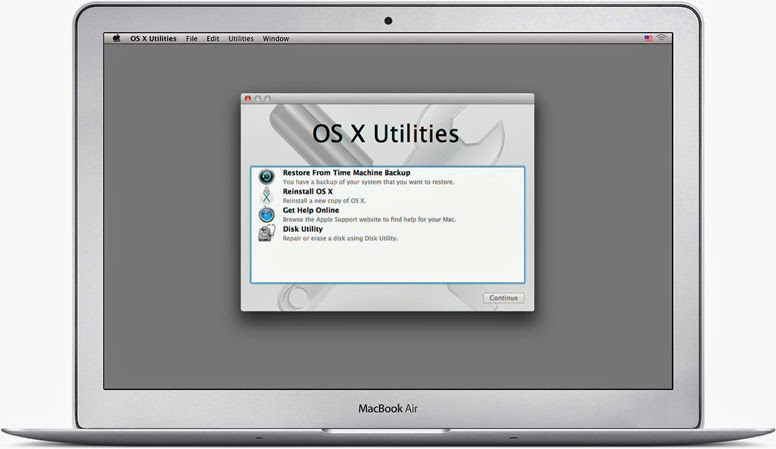
  3. Reboot into Recovery Mode (Hold down Command + R while powering up) - OK
    1. Run disk utility to repair disk - no problems reported
    2. Run disk utility to fix permissions - no problems reported
    3. Reinstall OS X - after 90 minutes the system failed to restart
    4. Repeat c) - after 2 hours the system reported an error
    5. Repeat c) - same result as c)
    6. Attempt to restore from Time Machine Backup - no Time Machine disk could be located
  1. PANIC
  2. Reboot in Single User Mode (Hold down Command + S while powering up) and run fcsk - no problems
  3. Reboot in Single User Mode and run Applejack - no problems
  4. Reboot and run Apple Hardware Test (Hold down D key while powering up) - standard and extended modes reported no problems
  5. PANIC more intensely
  6. Book Genius Bar Appointment (next slot in 48 hours time)
* For a full set of start-up options see this quick guide from Apple support.

Just for a moment, let's go back to step 6. Why couldn't the system find a Time Machine disk, especially given my tight backup regime? There was a Time Machine disk visible to Disk Utility but it really didn't look very happy. My shiny new 4Tb Seagate Backup Plus disk, sitting in its new Thunderbolt adapter was only showing one partition (there should be two) and that was only 500Gb (it should have been 2Tb).

Of course, whilst in panic mode, I'd forgotten that Seagate Backup Plus drives which are bigger than 2Gb need a special driver to work with the Thunderbolt adapter. In recovery mode, this driver wasn't getting loaded, and so the disk couldn't be recognised correctly. Hence the scary readings from Disk Utility.

To get round this, I had to replace the Thunderbolt adapter with the standard USB 3 adapter and try again. This time the backup drive was recognised and I could restore from the previous night's Time Machine backup.

Finally, the system rebooted although a load of settings had been screwed up. Some licences were missing, a number of configurations were screwed up - all in all, it didn't look much like the machine I crashed the night before. So the last task was to restore the CCC backup from the previous day, reboot one last time, keep fingers crossed and let out a big sigh of relief when everything booted up and looked like it was supposed to.

It just goes to show how important it is to have a rigorous backup strategy. If I'd had to go to the Genius bar it would have cost me another day, and the laptop could have been sent away for another week for a potentially expensive repair job (although luckily I still have 3 months left on my Apple Care warranty).

The only good thing that could have come out of a trip to Leicester Highcross Apple Store would have been to get an idea of the root cause - something I have not currently got, and probably won't ever have. But I think that would have been a long shot even for an Apple Genius.

One thing I do know. I'd much rather have to troubleshoot a Mac than a PC! At least Apple provide you with all the tools to help yourself - if you follow the advice from folks in the Apple community... and continue to read the Apple Harvest blog!

Happy Easter!