Having been a professional developer since the mid-1980's I have always been acutely aware of the need to take steps to protect my electronic data from accidental deletion, intentional deletion, intruders and all the other potential acts of God which fall under the control of Murphy's Law. I remember the CEO of the first company I worked for coming into our office one morning, squeezed my shoulder, grinned and stated "Ally, whatever you do, don't lose the source code". The warning has stayed with me ever since. [I also recall a colleague, some years later at a different organisation, who thought that photocopying source code listings was an effective backup mechanism!!]
In those days we weren't fortunate enough to have any of the amazing Configuration Management (CM) tools available to today's development teams. This was the dawn of the PC and electronic backup facilities were primitive, even in the corporate world. At home, a 10Mb hard drive cost a small fortune and was way beyond most people's wallets. So, we copied floppy disks, and made copies of the copies, and stored them at home and in the office to try and ensure some sort of data redundancy.
Despite the awesome advances in technology over the past 30 years, with highly sophisticated CM systems, amazing backup software like Time Machine, Carbon Copy Cloner (CCC) and SuperDuper, and the availability of cheap on-line and cloud based storage, Murphy's Law is still dominant. Something I was reminded of only too clearly last week.
While I'm in the Apple Harvest subsidiary office at my partner's house, I've had to rethink my backup regime. At HQ, with the iMac, I run Time Machine backups onto my 3Gb Time Capsule, copy my 1Tb iTunes library onto an external hard drive using ChronoSync which is scheduled to run on a daily basis (I also subscribe to iMatch under iTunes), and all my business files are synchronised with various cloud systems, like DropBox and SugarSync as well as my MacBook Air. Once a week I clone the hard drive using CCC.
Whilst at Mel's, using the MacBook Air, I set up a Seagate external Backup Plus drive to work as a Time Machine disk as well as the normal regime of cloud backups. Although I tried to set up a Time Machine link to the Time Capsule at HQ this proved unworkable. I keep my iTunes library on a second Seagate drive so this doesn't interfere with any TM backups.
But of course, this strategy failed to take into account Murphy's Law and last week the TM backup disk failed leaving me with an apparently dead drive and no backup facility; an accident waiting to happen. I managed to get a new Seagate disk ordered and delivered the following day and a couple of days later I fetched an additional drive from HQ. This is now configured to keep a CCC clone of the MBA internal flash drive and a second partition clones the 128Gb SD drive I use to extend the MBA storage capacity. These are now automatically incrementally cloned every day.
I still find it quite extraordinary that so many people fail to think about backups until it is too late. It seems that people fall into two main categories: those who never backup and those who have sophisticated strategies that allow for as many potential situations as possible. Even using Time Machine with no real thought is better than nothing, but you can still get caught out if your backup disk dies.
My recommendation for anyone without a backup strategy in place is to take an hour or so to seriously think about it, and put it in place. You need to think about the value of the data you store on your computer. If it's easily retrievable, or of little value to you, then maybe a simple Time Machine backup without a safety net is good enough for you.
If your whole life is stored on your computer and you cannot measure its value (no insurance claim can ever restore lost photos or videos once a disk is damaged beyond repair) then consider a backup strategy with multiple options. It'll be highly unlikely for everything to fail simultaneously, unless there's a massive electro-magnetic pulse which destroys all our global systems - in which case, rather than worrying about your computer, you're probably better off looking up at the sky to try and dodge the aeroplane which is just about to fall on you!
Showing posts with label Cloud Computing. Show all posts
Sunday, 5 January 2014
Sunday, 22 August 2010
Get Your Own Space - Zoom 3G Wireless Travel Router
I've been using PDAs and Smartphones for longer than I care to remember. Since trading in my Filofax in the early 1990s my life has existed in Cyberspace on a Psion 3, Psion Series 5, HP Journada, various Orange Smartphones and over the last two years on my iPhone 3G and now my iPhone 4. All these gadgets have had connections to laptops and desktops, initially Windows, but now everything exists in Apple Space.
The better these toys get, the more I find I'm reliant on them - from keeping track of expenses, looking up passwords, linking back to my Pogoplug and its disks back at home, to route finding, on-line timetables, and of course social networking and mail - I can do nearly everything I need to do on my iPhone and link it back to my iMac or MBP when back at base, wherever that may be.
Which means that there are times when I'm completely and utterly screwed - especially when I'm abroad. The old O2 unlimited data plan may have been replaced by a more restrictive 500Mb allowance, but this is simply luxurious when you are abroad, with prohibitive roaming charges and exorbitant wireless fees for anything more than very casual access. And without liberal access to data, the iPhone (or any other Smartphone for that matter) becomes little more than any other phone on the market, except it's much more painful having all those apps at your fingertips that you can't or daren't use.
What you need is a personal WiFi space around you which provides you with a mobile lifeline to Cyberspace. In the UK 3 have led the way with their MiFi device which is a 3G device that generates a WiFi hotspot from the 3G signal. But this is locked to 3, and as soon as you step out of the UK you get hit by those evil roaming charges once again. launch2net (see the review from earlier this year) allows you to generate a WiFi hotspot but it means dragging a laptop around with you which is not a particularly mobile solution - it's a bit of a throwback to the days when mobile phones came with batteries the size and weight of a car battery.
There is an alternative to the 3 MiFi solution which costs a similar amount but does the same job without tying you to a specific network. Enter - stage right - the Zoom 3G Wireless Travel Router.

The Zoom device allows you to plug in (almost) any 3G USB stick and will then generate a WiFi hotspot from the 3G signal. I've had mine for about a fortnight and it's had a huge impact on my life here in Zurich. I can use the translation programme while I'm in the supermarket (my German is non-existent). I can do currency conversions using the latest Forex data rather than week old rates. I can get train and tram times before I leave the office so that I don't have to hang around the tram stops in the rain. I can see Twitter at work (a social networking free environment) and get my mail without having to fire up the laptop.
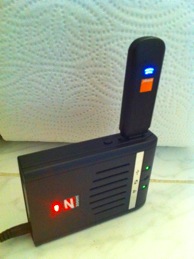
The Zoom 3G Wireless Router is not as elegant (pretty) as the 3 MiFi, but it is downright functional. The box is about 4 x 3in and an inch thick. It weighs just under 5 oz with the battery. The photo below shows a size comparison to the 3G iPhone. The unit is supplied with a rechargeable battery which lasts about 3 hours in a single go, and takes a couple of hours to recharge from the power adaptor (also supplied). The router can run from the mains if required. LEDs on the top panel show power/charge status, USB connection, Wireless on, and Ethernet connection. An on/off switch is located at the rear of the unit, alongside an Ethernet port. As shown above the 3G dongle fits into the USB socket on one side of the box. While this looks a bit ungainly, the connection is good, and I've never had the dongle fall out, despite having the unit sitting in a rucksack pocket and in my trouser pocket.

Router configuration is very simple. It's easiest to connect the unit to your computer via the ethernet cable, plug in the dongle, power up and then set your browser to point to http://192.168.1.1 which will load up the configuration page for the device. A Wizard is available to quickly get you up and running, and allows you to modify the configuration manager password, choose a security method for protecting your WiFi hotspot and assigning a password if necessary, and finally for setting up the dongle/ISP settings - APN, username and password, and PIN. Some of these will be provided with your dongle, others are easily available from the internet. You will have to go through this configuration every time you change the dongle. If you use the same dongle all the time the device retains the settings.
There a numerous other configuration options available through the configuration page advanced settings but I've not really investigated these. Everything I need can be achieved through the wizard. I regularly change 3G dongles and configuration literally takes 30 seconds between changes. For those of you concerned about security (which should be all of you!), the router can handle WEP, WPA and WPA2 protocols. And while on the subject of protocols, the router supports 802.11n/g and b wireless capabilities.
The Zoom travel router has proved to be one of my best buys of the last few years. Inevitably there are going to be places where it won't work because no 3G signal is available. I very much doubt I'll be able to use it on most of the train journey between the East Midlands and London on which none of my connections seem to work for very long, but when you are out of range of a wireless hotspot in town there shouldn't be any problems. It really comes into its own as soon as you go abroad, especially for iPhones, iPads and other smart gadgets which need live data to truly make them smart. Zoom also produce a 3G dongle which is not locked - so with the pair of gadgets, all you need to do when you go to a new country is buy a PAYG SIM card and you should be up and running in no time.
Highly recommended!!!
.
The better these toys get, the more I find I'm reliant on them - from keeping track of expenses, looking up passwords, linking back to my Pogoplug and its disks back at home, to route finding, on-line timetables, and of course social networking and mail - I can do nearly everything I need to do on my iPhone and link it back to my iMac or MBP when back at base, wherever that may be.
Which means that there are times when I'm completely and utterly screwed - especially when I'm abroad. The old O2 unlimited data plan may have been replaced by a more restrictive 500Mb allowance, but this is simply luxurious when you are abroad, with prohibitive roaming charges and exorbitant wireless fees for anything more than very casual access. And without liberal access to data, the iPhone (or any other Smartphone for that matter) becomes little more than any other phone on the market, except it's much more painful having all those apps at your fingertips that you can't or daren't use.
What you need is a personal WiFi space around you which provides you with a mobile lifeline to Cyberspace. In the UK 3 have led the way with their MiFi device which is a 3G device that generates a WiFi hotspot from the 3G signal. But this is locked to 3, and as soon as you step out of the UK you get hit by those evil roaming charges once again. launch2net (see the review from earlier this year) allows you to generate a WiFi hotspot but it means dragging a laptop around with you which is not a particularly mobile solution - it's a bit of a throwback to the days when mobile phones came with batteries the size and weight of a car battery.
There is an alternative to the 3 MiFi solution which costs a similar amount but does the same job without tying you to a specific network. Enter - stage right - the Zoom 3G Wireless Travel Router.
The Zoom device allows you to plug in (almost) any 3G USB stick and will then generate a WiFi hotspot from the 3G signal. I've had mine for about a fortnight and it's had a huge impact on my life here in Zurich. I can use the translation programme while I'm in the supermarket (my German is non-existent). I can do currency conversions using the latest Forex data rather than week old rates. I can get train and tram times before I leave the office so that I don't have to hang around the tram stops in the rain. I can see Twitter at work (a social networking free environment) and get my mail without having to fire up the laptop.
The Zoom 3G Wireless Router is not as elegant (pretty) as the 3 MiFi, but it is downright functional. The box is about 4 x 3in and an inch thick. It weighs just under 5 oz with the battery. The photo below shows a size comparison to the 3G iPhone. The unit is supplied with a rechargeable battery which lasts about 3 hours in a single go, and takes a couple of hours to recharge from the power adaptor (also supplied). The router can run from the mains if required. LEDs on the top panel show power/charge status, USB connection, Wireless on, and Ethernet connection. An on/off switch is located at the rear of the unit, alongside an Ethernet port. As shown above the 3G dongle fits into the USB socket on one side of the box. While this looks a bit ungainly, the connection is good, and I've never had the dongle fall out, despite having the unit sitting in a rucksack pocket and in my trouser pocket.
Router configuration is very simple. It's easiest to connect the unit to your computer via the ethernet cable, plug in the dongle, power up and then set your browser to point to http://192.168.1.1 which will load up the configuration page for the device. A Wizard is available to quickly get you up and running, and allows you to modify the configuration manager password, choose a security method for protecting your WiFi hotspot and assigning a password if necessary, and finally for setting up the dongle/ISP settings - APN, username and password, and PIN. Some of these will be provided with your dongle, others are easily available from the internet. You will have to go through this configuration every time you change the dongle. If you use the same dongle all the time the device retains the settings.
There a numerous other configuration options available through the configuration page advanced settings but I've not really investigated these. Everything I need can be achieved through the wizard. I regularly change 3G dongles and configuration literally takes 30 seconds between changes. For those of you concerned about security (which should be all of you!), the router can handle WEP, WPA and WPA2 protocols. And while on the subject of protocols, the router supports 802.11n/g and b wireless capabilities.
The Zoom travel router has proved to be one of my best buys of the last few years. Inevitably there are going to be places where it won't work because no 3G signal is available. I very much doubt I'll be able to use it on most of the train journey between the East Midlands and London on which none of my connections seem to work for very long, but when you are out of range of a wireless hotspot in town there shouldn't be any problems. It really comes into its own as soon as you go abroad, especially for iPhones, iPads and other smart gadgets which need live data to truly make them smart. Zoom also produce a 3G dongle which is not locked - so with the pair of gadgets, all you need to do when you go to a new country is buy a PAYG SIM card and you should be up and running in no time.
Highly recommended!!!
.
Tuesday, 1 December 2009
Cloud Computing - Pie in the Sky ?
I was looking through my iPhone the other day with a view to clearing out some unused or redundant apps. You know how it is - you download something because it seems useful, and some months later you download something similar because it seems more useful, but you don't get rid of the first one...
Some of the decisions were simple. I'm only a casual gamer so any unplayed free games were the first to go. I really don't need three battery checkers, or two WiFi hotspot finders, and some of those "really useful" apps were no longer needed because they were all available within AppBox Pro. I decided that one Twitter client was also sufficient, so as much as I like TweetDeck I now use Tweetie2 most of the time. TweetDeck was duly consigned to the discard pile.
But then I came to my "business" apps. Some of these like PDF Reader, Merlin, Bento, Awesome Note, iXpensIt, Shrook and Things had to stay, either because they provide me with portable versions of my desktop apps, or because they are excellent apps which serve me well. That left a whole bunch of apps which serve a similar purpose, namely, to provide us with a way of viewing, storing and possibly editing "office" type files - documents, presentations and spreadsheets.
The trouble is that these apps have been designed to plug a perceived gap in the iPhones native apps. Apps like Files, QuickOffice, Dropbox, SugarSync, and Fliq were created so that we could copy files from our desktops, work on them whilst on the move, and download them again when we reached our destination. Or so that we could send them to our colleagues or clients in an emergency. Or so that we could be bound even tighter by the chains of the workplace which becomes ever more pervasive in our personal lives. The other problem is that none of these apps does everything that you actually need! They all do a little bit which is why you end up with a fistful of the darn things.
This got me thinking about the whole concept of cloud computing, the necessity of mobile access to our documents, and a bit about how we actually use our iPhones (or Blackberries, etc.) and perhaps how we should be using them.
I'm a bit of a sceptic when it comes to cloud computing. I believe it's based on an unsound principle which is that high speed, cheap and efficient internet connections are available to all people at all times and in all places. This is clearly not the case unless you live in South Korea. It is certainly not the case in rural Britain or if you are on public transport in the UK where I often have trouble getting a 2G signal. I'm not even going to begin to go into the security aspects. Companies have enough trouble looking after physical data sources like CDs, DVDs and Laptops, so what hope do they have securing data in the Ether?
In the year that I've had my iPhone I've accessed "work" documents a couple of times, generally to test out these new apps and see how my masterpieces look. I've used Smartphones and PDAs for over ten years altogether but I've yet to use an app to resolve a business crisis involving lost files and document editing on any of them. That's why I have a laptop with a Broadband dongle.
What I am interested in at the Apple Harvest is a smart way of synchronising data across laptop, netbook, desktop and occasionally the iPhone. I have no desire to create documents on the iPhone, other than short notes, baby spreadsheets and similar "aides de memoirs". If I know that my computers are in sync and my to-do lists, calendars and contacts , etc., on the iPhone are all up-to-date then I'm sorted. Because I work for myself security is my problem so I want to keep things simple, and generally I'm unfettered from corporate binds because I'm in touch with myself 24*7 anyway. So I've decided that I don't need all these apps to connect with my work.
Unfortunately there still isn't one app that can do everything I want. But I've whittled it down to two, SugarSync and Evernote, and some supporting technologies, MobileMe, SyncDocs, and GoogleDocs. The reason that there are still five things I need to consider is that it's not just documents that I'm dealing with. Often it is application related data which isn't stored as a convenient standalone file. Applications like Things and SketchBox, as well as all my work related folders are dealt with by SugarSync. I use Evernote to handle my web notes (web pages that I want access to at a later date, and across multiple machines). MobileMe takes care of all my personal data, iCal, Contacts, and data from a few applications like Yojimbo and TextExpander. SyncDocs and GoogleDocs are required to export data from specific iPhone apps, Notebooks and Awesome Notes respectively.
So you see, it's still quite complicated and there is still an unhealthy dependency on the cloud. But I can get around the cloud for most important things should the need arise. Which really brings me back to the original problem. I only need the cloud because I've elected to run my life across a laptop, a netbook, a desktop and an iPhone. Life would be a whole lot easier if I'd stuck to a laptop and a mobile phone that made calls and nothing else. My devotion to technology has brought about a new set of requirements (which could be considered unnecessary) and to meet those requirements I've had to build a complex solution. Why? Because I can...
Some of the decisions were simple. I'm only a casual gamer so any unplayed free games were the first to go. I really don't need three battery checkers, or two WiFi hotspot finders, and some of those "really useful" apps were no longer needed because they were all available within AppBox Pro. I decided that one Twitter client was also sufficient, so as much as I like TweetDeck I now use Tweetie2 most of the time. TweetDeck was duly consigned to the discard pile.
But then I came to my "business" apps. Some of these like PDF Reader, Merlin, Bento, Awesome Note, iXpensIt, Shrook and Things had to stay, either because they provide me with portable versions of my desktop apps, or because they are excellent apps which serve me well. That left a whole bunch of apps which serve a similar purpose, namely, to provide us with a way of viewing, storing and possibly editing "office" type files - documents, presentations and spreadsheets.
The trouble is that these apps have been designed to plug a perceived gap in the iPhones native apps. Apps like Files, QuickOffice, Dropbox, SugarSync, and Fliq were created so that we could copy files from our desktops, work on them whilst on the move, and download them again when we reached our destination. Or so that we could send them to our colleagues or clients in an emergency. Or so that we could be bound even tighter by the chains of the workplace which becomes ever more pervasive in our personal lives. The other problem is that none of these apps does everything that you actually need! They all do a little bit which is why you end up with a fistful of the darn things.
This got me thinking about the whole concept of cloud computing, the necessity of mobile access to our documents, and a bit about how we actually use our iPhones (or Blackberries, etc.) and perhaps how we should be using them.
I'm a bit of a sceptic when it comes to cloud computing. I believe it's based on an unsound principle which is that high speed, cheap and efficient internet connections are available to all people at all times and in all places. This is clearly not the case unless you live in South Korea. It is certainly not the case in rural Britain or if you are on public transport in the UK where I often have trouble getting a 2G signal. I'm not even going to begin to go into the security aspects. Companies have enough trouble looking after physical data sources like CDs, DVDs and Laptops, so what hope do they have securing data in the Ether?
In the year that I've had my iPhone I've accessed "work" documents a couple of times, generally to test out these new apps and see how my masterpieces look. I've used Smartphones and PDAs for over ten years altogether but I've yet to use an app to resolve a business crisis involving lost files and document editing on any of them. That's why I have a laptop with a Broadband dongle.
What I am interested in at the Apple Harvest is a smart way of synchronising data across laptop, netbook, desktop and occasionally the iPhone. I have no desire to create documents on the iPhone, other than short notes, baby spreadsheets and similar "aides de memoirs". If I know that my computers are in sync and my to-do lists, calendars and contacts , etc., on the iPhone are all up-to-date then I'm sorted. Because I work for myself security is my problem so I want to keep things simple, and generally I'm unfettered from corporate binds because I'm in touch with myself 24*7 anyway. So I've decided that I don't need all these apps to connect with my work.
Unfortunately there still isn't one app that can do everything I want. But I've whittled it down to two, SugarSync and Evernote, and some supporting technologies, MobileMe, SyncDocs, and GoogleDocs. The reason that there are still five things I need to consider is that it's not just documents that I'm dealing with. Often it is application related data which isn't stored as a convenient standalone file. Applications like Things and SketchBox, as well as all my work related folders are dealt with by SugarSync. I use Evernote to handle my web notes (web pages that I want access to at a later date, and across multiple machines). MobileMe takes care of all my personal data, iCal, Contacts, and data from a few applications like Yojimbo and TextExpander. SyncDocs and GoogleDocs are required to export data from specific iPhone apps, Notebooks and Awesome Notes respectively.
So you see, it's still quite complicated and there is still an unhealthy dependency on the cloud. But I can get around the cloud for most important things should the need arise. Which really brings me back to the original problem. I only need the cloud because I've elected to run my life across a laptop, a netbook, a desktop and an iPhone. Life would be a whole lot easier if I'd stuck to a laptop and a mobile phone that made calls and nothing else. My devotion to technology has brought about a new set of requirements (which could be considered unnecessary) and to meet those requirements I've had to build a complex solution. Why? Because I can...
Subscribe to:
Posts (Atom)