Showing posts with label Time Machine. Show all posts

Thursday, 17 April 2014

I'd Rather Troubleshoot A Mac Than A PC!

Yesterday I lost another day of my life due to my MacBook Air crashing, just four months after the last hiccup (see Mavericks woes). Of course, the problem this time was subtly different to the previous time - the laptop 'died ' late on Monday night. I lost the mouse connection, and then everything else became unresponsive. It was too late to do anything so I switched it off and went to bed, blissfully ignorant of what was to follow the next day!


First thing yesterday morning I snuck into my office and switched on before going for a shower. Twenty minutes later and the gear wheel was still spinning. I rebooted and the same thing happened. So I started working through my check list of curative actions. Here we go....with notes about the action and outcome...
  1. Reboot in Safe Mode (Hold down the Shift key while powering up*) - nothing
  2. Reboot in Verbose Safe Mode (Hold down Shift and Command + V keys while powering up) - nothing
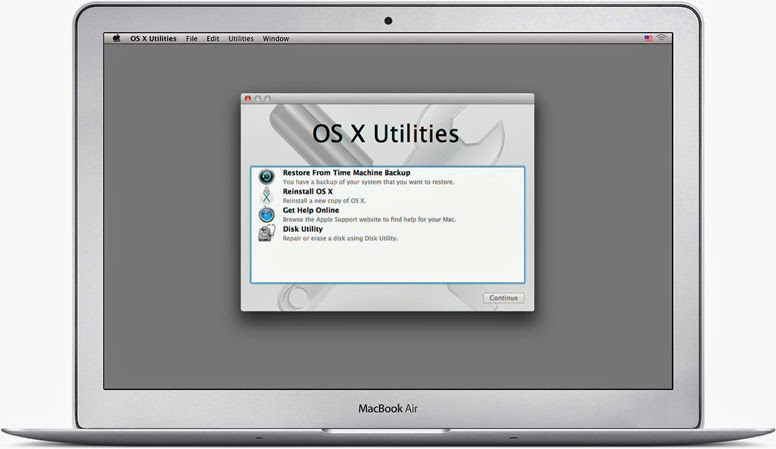
  3. Reboot into Recovery Mode (Hold down Command + R while powering up) - OK
    1. Run disk utility to repair disk - no problems reported
    2. Run disk utility to fix permissions - no problems reported
    3. Reinstall OS X - after 90 minutes the system failed to restart
    4. Repeat c) - after 2 hours the system reported an error
    5. Repeat c) - same result as c)
    6. Attempt to restore from Time Machine Backup - no Time Machine disk could be located
  1. PANIC
  2. Reboot in Single User Mode (Hold down Command + S while powering up) and run fcsk - no problems
  3. Reboot in Single User Mode and run Applejack - no problems
  4. Reboot and run Apple Hardware Test (Hold down D key while powering up) - standard and extended modes reported no problems
  5. PANIC more intensely
  6. Book Genius Bar Appointment (next slot in 48 hours time)
* For a full set of start-up options see this quick guide from Apple support.

Just for a moment, let's go back to step 6. Why couldn't the system find a Time Machine disk, especially given my tight backup regime? There was a Time Machine disk visible to Disk Utility but it really didn't look very happy. My shiny new 4Tb Seagate Backup Plus disk, sitting in its new Thunderbolt adapter was only showing one partition (there should be two) and that was only 500Gb (it should have been 2Tb).

Of course, whilst in panic mode, I'd forgotten that Seagate Backup Plus drives which are bigger than 2Gb need a special driver to work with the Thunderbolt adapter. In recovery mode, this driver wasn't getting loaded, and so the disk couldn't be recognised correctly. Hence the scary readings from Disk Utility.

To get round this, I had to replace the Thunderbolt adapter with the standard USB 3 adapter and try again. This time the backup drive was recognised and I could restore from the previous night's Time Machine backup.

Finally, the system rebooted although a load of settings had been screwed up. Some licences were missing, a number of configurations were screwed up - all in all, it didn't look much like the machine I crashed the night before. So the last task was to restore the CCC backup from the previous day, reboot one last time, keep fingers crossed and let out a big sigh of relief when everything booted up and looked like it was supposed to.

It just goes to show how important it is to have a rigorous backup strategy. If I'd had to go to the Genius bar it would have cost me another day, and the laptop could have been sent away for another week for a potentially expensive repair job (although luckily I still have 3 months left on my Apple Care warranty).

The only good thing that could have come out of a trip to Leicester Highcross Apple Store would have been to get an idea of the root cause - something I have not currently got, and probably won't ever have. But I think that would have been a long shot even for an Apple Genius.

One thing I do know. I'd much rather have to troubleshoot a Mac than a PC! At least Apple provide you with all the tools to help yourself - if you follow the advice from folks in the Apple community... and continue to read the Apple Harvest blog!

Happy Easter!


Sunday, 5 January 2014

Backup Boogaloo

Having been a professional developer since the mid-1980's I have always been acutely aware of the need to take steps to protect my electronic data from accidental deletion, intentional deletion, intruders and all the other potential acts of God which fall under the control of Murphy's Law. I remember the CEO of the first company I worked for coming into our office one morning, squeezed my shoulder, grinned and stated "Ally, whatever you do, don't lose the source code". The warning has stayed with me ever since. [I also recall a colleague, some years later at a different organisation, who thought that photocopying source code listings was an effective backup mechanism!!]

In those days we weren't fortunate enough to have any of the amazing Configuration Management (CM) tools available to today's development teams. This was the dawn of the PC and electronic backup facilities were primitive, even in the corporate world. At home, a 10Mb hard drive cost a small fortune and was way beyond most people's wallets. So, we copied floppy disks, and made copies of the copies, and stored them at home and in the office to try and ensure some sort of data redundancy.

Despite the awesome advances in technology over the past 30 years, with highly sophisticated CM systems, amazing backup software like Time Machine, Carbon Copy Cloner (CCC) and SuperDuper, and the availability of cheap on-line and cloud based storage, Murphy's Law is still dominant. Something I was reminded of only too clearly last week.


While I'm in the Apple Harvest subsidiary office at my partner's house, I've had to rethink my backup regime. At HQ, with the iMac, I run Time Machine backups onto my 3Gb Time Capsule, copy my 1Tb iTunes library onto an external hard drive using ChronoSync which is scheduled to run on a daily basis (I also subscribe to iMatch under iTunes), and all my business files are synchronised with various cloud systems, like DropBox and SugarSync as well as my MacBook Air. Once a week I clone the hard drive using CCC.

Whilst at Mel's, using the MacBook Air, I set up a Seagate external Backup Plus drive to work as a Time Machine disk as well as the normal regime of cloud backups. Although I tried to set up a Time Machine link to the Time Capsule at HQ this proved unworkable. I keep my iTunes library on a second Seagate drive so this doesn't interfere with any TM backups.

But of course, this strategy failed to take into account Murphy's Law and last week the TM backup disk failed leaving me with an apparently dead drive and no backup facility; an accident waiting to happen. I managed to get a new Seagate disk ordered and delivered the following day and a couple of days later I fetched an additional drive from HQ. This is now configured to keep a CCC clone of the MBA internal flash drive and a second partition clones the 128Gb SD drive I use to extend the MBA storage capacity. These are now automatically incrementally cloned every day.

I still find it quite extraordinary that so many people fail to think about backups until it is too late. It seems that people fall into two main categories: those who never backup and those who have sophisticated strategies that allow for as many potential situations as possible. Even using Time Machine with no real thought is better than nothing, but you can still get caught out if your backup disk dies.

My recommendation for anyone without a backup strategy in place is to take an hour or so to seriously think about it, and put it in place. You need to think about the value of the data you store on your computer. If it's easily retrievable, or of little value to you, then maybe a simple Time Machine backup without a safety net is good enough for you.


If your whole life is stored on your computer and you cannot measure its value (no insurance claim can ever restore lost photos or videos once a disk is damaged beyond repair) then consider a backup strategy with multiple options. It'll be highly unlikely for everything to fail simultaneously, unless there's a massive electro-magnetic pulse which destroys all our global systems - in which case, rather than worrying about your computer, you're probably better off looking up at the sky to try and dodge the aeroplane which is just about to fall on you!


Saturday, 13 July 2013

My Top 6 OS X Pre Mavericks Bug Fixes


I can't wait until the autumn when OS X Mavericks arrives (hopefully!). From what I've seen and read so far, the highlights for me are :

  • Proper multi-display handling (why so long?)
  • Searchable tags in Finder (again why so long?)
  • Improved notification support (especially across devices)
  • iCloud Keychain (with reservations)

But before we get too excited about these 'innovations' (let's face it these aren't genuine innovations, they are integrated improvements which in many cases are already available through 3rd party software (e.g. Tags, 1Password), I hope Apple have gone through the support logs, bug reports and forums, although the latter may be a misguided hope) to find out what still needs fixing after multiple incarnations of OS X.

I have six areas I've singled out for attention. They aren't real show stoppers but they are annoying because of their longevity, and the fact that they do appear to affect thousands of users. So here are my top six bugbears (in no significant order)

iTunes / iMatch

I love iMatch. My music library alone has over 27,000 songs in it, which is clearly impossible to keep on anything other than a Mac with a 250Gb drive, and certainly not on any iOS devices. Even my 160Gb iPod classic has already gone overdrawn (unless you listen to nothing but 3 minute pop songs the estimate of 40,000 songs in your pocket is a clear overestimate). But my  number one bug with iMatch is the way that play counts get screwed up everytime iMatch weaves its magic. Last played dates remain intact but play counts are re-zeroed. This seems to happen pretty much at random - I can't see any patterns. Sometimes 100 songs are affected, sometimes it's as many as 17,000. But many of my smartlists use play counts and I have to rely on Doug's Apple Scripts for iTunes to fix the problem to make these smart lists work properly. OK, it's not mission critical, but as a former programmer I can't believe this is anything more than a five minute fix.

Another issue I have with iTunes is that I'd like to see the same viewing options in the Home Sharing that I have in the dedicated library support, specifically regarding playlists. I think this is an omission rather than a bug, but I'd like to see my home share playlists as something more than a plain list.

Final iTunes gripe is the amount of time it takes to check the integrity of the iTunes library after a crash or improper exit. Please find a way to speed this up - it can take 10 minutes or so on a really large library, and I want to listen to my music now!

Mac App Store

I've documented the problem with the Mac App Store in a previous post, but this bug is still lurking and it would appear to be due to Apple linking the internal store data to the user's spotlight index. So, when the spotlight index gets corrupted, for whatever reason, the Mac App Store can't work out which apps are installed, which need updating or which new apps should be installed. If Apple used a separate index for the Mac App Store app rather than relying on spotlight I would expect this bug to disappear. Again, this situation can usually be resolved by rebuilding the spotlight index, but this can take hours, and the user shouldn't have to understand how this works in order to be able to update their apps.

Time Machine

There are a few issues that regularly occur with Time Machine backups but I'm guessing this is not an easy problem to fix. Nevertheless, I would argue that anything to do with backing up your system can be classed as mission critical and as such I would urge Apple to look closely at some of the more common problems. My two favourites ("?"!!) are "Time Machine Disk cannot be found" and "Sparse.bundle already in use".

In both cases, for me at least, rebooting the Time Capsule (or sometimes the modem/router) will almost always fix the problem, but takes down the system at the same time since the TC device is my wireless router.

Integrity of Time Machine backups is paramount and while the backup and restore system usually works perfectly, there are enough glitches for me not to have complete confidence that my systems are 100% safe without taking additional steps like regularly cloning disks.

Networking

There's a well reported issue with network access being lost when a Mac goes to sleep. Apparently Apple are aware of some significant problems in this space and the last couple of 10.8.x betas have asked developers to look out for changes in this area. It seems a shame that Apple have included the 'power nap' feature in Mountain Lion but many people can't take advantage of it since they have no network once the machine is asleep. Maybe this will be fixed in the forthcoming 10.8.5 release - fingers and ethernet cables crossed! At present I'm getting round the problem by using a 3rd party app called Sleepless but this comes with a potential overheating health warning (especially in this hot weather!).

AirPlay

I've also documented AirPlay problems on this blog in the past. AirPlay is one of those funny things - it either works or it doesn't, and if it doesn't, it just seems a matter of starting everything again. Some improved diagnostics would be really helpful (unlike Error -1500 …) if nothing else.

Safari

This is a relatively new issue that I've noticed where sometimes Safari just partially freezes. The menu works, scrolling works, selecting tabs works but noe of the controls on a page work. Buttons can't be pressed, input fields can't be filled. This only appears to be on certain sites - I have most problems with the Amazon login page. The only fix I have to date is to restart Safari.


As I've indicated, none of these problems is without a work around, and none are that critical (exception possibly being Time Machine). But they do cause interruptions, they force me to spend time fixing them when I could be doing something more productive - and overall they detract from the whole Apple OS X experience, where stuff just works!

Any specific bugs you'd like to see fixed before Mavericks? Drop me a note via the comments or @allygill on Twitter so we can compare notes.

Enjoy the summer!


Monday, 12 April 2010

Repairing Login Parameters

I was really excited to see the announcement and release of Snow Leopard 10.6.3 in the hope that the update would resolve my (and others) long outstanding problems where I lose my Internet/Server connection on my iMac on an intermittent and recurring basis. I've written about this at length in previous posts so I won't repeat the details here, but sadly, 10.6.3 doesn't appear to have made any material difference. Time between failures is generally longer, but the problem is still there, and the only solution is a restart or a total power down and on cycle.

It was during one of these outages over the weekend that I ran into a different problem. On starting the machine back up, over half the start-up programmes had failed to load. I checked the Login Items preferences in the Account option under System Preferences, and true enough there were only six items out of the twenty or so programmes I expected.

I had encountered this problem once or twice before, and had always resorted to fixing it the hard way; by adding each of the missing entries manually and hoping that I hadn't forgotten anything important. Thinking that there must be a better and easier fix, I typed in a tentative Google search for "login items in OS X". I couldn't immediately find anything that seemed to match my particular problem, but I did find some references to a file called loginwindow.plist that I thought might be worth looking at.

I fired up the Finder and located the loginwindow.plist file in the /Users/< username >/Library/Preferences folder. Opening this up with the extremely useful PrefEdit application from Marcel Bresink showed that this file indeed was the place where the login items information was stored. Next, I opened up Time Machine and found a pre-crash version of the file and a few seconds later had all my login items restored in their rightful place. Another restart, and everything was back to normal.

I'd like to know what causes the login items to disappear, but at least this is a relatively painless way to get them back when they do go awol!


Friday, 4 December 2009

Useful Mail Add-Ins and a Small Surprise

I promised to take a closer look at some of the add-ins that make Apple Mail my mail client of choice. But before I do that I wanted to share something I discovered this morning by chance.

Mail Recovery with Time Machine

Like many people who were early adopters of Snow Leopard I had a few teething troubles in the first few weeks with my existing Mail accounts. I've made reference to this in previous posts so won't dwell on it here other than to say that the problem no longer appears to exist. However, there does appear to have been some debris left over from this episode, and I found that I had multiple references to the same account stored in various locations. In an attempt to clear up the unwanted references I had an accident with some of my sent messages (I'm a hoarder and keep copies of everything for years). The message header details appeared in the Sent mailbox but the messages themselves were missing.

By chance I happened to start up Time Machine whilst still in Mail, and discovered that in this instance Time Machine will focus all its attention on your mailboxes. A few clicks later and all my sent mail was restored to its expected state but in a safe mailbox called "Time Machine/Recovered". I referred back to David Pogue's excellent "Mac OS X The Missing Manual (Leopard Edition)" and indeed this feature was available in Leopard and works in a similar way with iPhoto and Address Book.

This is a great feature for recovering from minor glitches with mail without having to resort to a full mail system restore. I wish I'd known about it before!

Letterbox Add-In

Letterbox is one of those "oh-so-simple" things that it really begs the question as to why it wasn't part of the original requirements in the Mail programme. Aaron Harnly's add-in allows a three column view within the main Mail window with the message content in the third column. The current 0.24b5 beta release works with Snow Leopard 10.6.2 and allows a few other goodies like changing alternate line colours in the mail header list, and allowing a two line view also in that window. Letterbox is free, and new updates to support Apple updates are usually very quick off the board.

DockStar

DockStar from ecamm network ($15.00) provides you with a configuration utility for the Mail icon in the dock, allowing the mail count of up to five mailboxes to be displayed on the icon. It does this by adding 'badges' to the icon. Each badge allows different options to be selected, e.g. which mailbox, style and colour of display, and type of count (unread, total, etc.). Badges can also be displayed in the menu bar. Again, a very simple concept but really useful for monitoring incoming mail without constantly having to check the Mail application itself.

MailTags

I've not been using MailTags from indev software ($29.95) for very long so I'm probably not doing justice to its full feature set, but nonetheless I do find it useful. In its simplest form MailTags allows you to tag individual mail messages using categories of your own choice, and to filter messages using those tags. It also allows you to add other metadata to a message such a priority, project, colour, and notes. It also allows you to use your notes to change the visible title of the mail. MailTags are integrated into rules giving you further abilities, and tags are supported by other applications such as Mail Steward, giving you the same filtering abilities in these apps. I find it really useful for marking messages containing invoices and license information using a specific format which allows me much quicker access to the info when I need it, without having to wade through message bodies. Some discipline is required to make full use of such a facility, but it's well worth the effort, especially when it's time to start annual accounts...

I'll cover some of the other add-ins I find useful in a future post, but hopefully there's plenty here to get you salivating. And none of these will make your tongue taste nasty!