Showing posts with label Diagnostics. Show all posts

Friday, 15 February 2019

Fruity Tips #3 - Got a Slow Boot Problem On A MacBook Pro?

My love affair with my new refurbished 2017 15" MBP was on the verge of needing a trip to Relate recently. Whilst it has been a brilliant performer and has easily coped with everything I've thrown at it over the past three months, it has had something of a teenage strop in the last few weeks. It has been taking ages to reboot and be ready for me to start to do any actual work.


I'm used to Windows machines taking an age between powering them up and being able to do anything productive - that was the primary motive for me making the move to a Mac. And I've never had any problems with MacBook Airs or iMacs in respect of boot time. Even the latest addition to the Apple Harvest was fine until a few weeks back. And then it suddenly started taking an age to reboot. I'd get the Apple logo and progress bar which would get to about 60-70% and then hang. I'd power down and re-power and the same thing would happen.

I hate it when this kind of problem occurs because you usually know it's going to take a lot of sleuthing and pain to find the root cause. And it's almost certainly going to take a lot of time and patience (and as I get older, patience is sometimes in short supply).

I started off with all the usual experiments:

  • Reboot in Safe Mode - the outcome was even worse. I nearly wore out my fingertips waiting for the logo to appear
  • Reset SMC - no change
  • Reset PRAM - no change
  • Reboot into recovery - result!
Once in recovery, I could at least test the SSD using disk utility and this showed there were no problems (but indicated there were 9 APFS snapshots, each of which took an age to verify). In addition, with access to the Terminal app, I also set the boot arguments to automatically start up in Safe mode and with verbose output. I started the laptop and retired to a safe distance rather than sitting there watching it and being tempted to interfere. I returned after about an hour and the MBP was indeed booted into Safe mode. Phew! I becoming was less concerned that this was a hardware issue and more of a software or configuration problem. I reset the boot argument and started again.

A reboot into Safe mode is sometimes all that is needed to fix a teething problem, but not so in this case. When I restarted in normal mode I still had the same problem. This time I left the laptop to its own devices and it took over twenty minutes to get to the login screen. In theory,  I could have things as they were. I generally keep my MacBook powered on, just putting it to sleep every night and waking it up every morning using a schedule set up in Power Manager. I only switch off the machine on a Saturday night, again, using an automated schedule which then wakes it early on Sunday morning. Since the machine is set to switch on before I wake up, I wouldn't see how long it takes to boot! Out of sight, out of mind, so to speak. 

But I already knew it was a problem, so I needed to resolve it. It's just the way I am, and who knows, it could be hiding a bigger problem just waiting to happen. Next step was to reinstall Mojave. I have a USB installation drive for such contingencies, so I booted that up (it booted almost instantly) and ran the installation. 

Still no improvement on the boot time. But since the USB drive boot was quick, it was becoming clearer that this was now either a problem with the SSD, which I deemed unlikely or it was a third party software configuration issue.

I started searching for similar reports of poor boot times and was kind of relieved to find I was far from alone. A boot time of twenty minutes was far from uncommon. One particular discussion on the Apple support forum ran to twenty-three pages (with no obvious resolution). One area that caught my attention was that the APFS snapshots could have been responsible and I went back to verbose mode to see if this was a problem but it turned out to be a red-herring.

Eventually, I happened upon a discussion about Little Snitch and some people reporting that they had isolated their boot time problems to a specific set of releases of Little Snitch. A support query on their web page concerning this problem runs to 7 pages. Since I was into my second weekend of trying to isolate the problem, I was willing to give anything a go, so I disabled Little Snitch and rebooted. Wham, bam and thank you, mam. I got back to the kind of boot time I was expecting, around 20-30 seconds (I have quite a lot of stuff that gets loaded at boot time). 

To try and prove the point and verify that this was the problem I re-enabled Little Snitch and went back to a twenty-minute reboot. A few days later,  Objective Development who own Litte Snitch released a new version which resolved the problem - a problem that Objective Development say they've been unable to recreate, which I find extraordinary. Nonetheless, Little Snitch 4.3 Build 5256 appears to have fixed the problem...For now at least! 


And it was just in time for Valentine's Day - so the machine and I could continue the love affair and no machines got massacred during the writing of this blog post!





Thursday, 11 August 2016

The Old Ones Are Often Still the Best

I forget exactly when, but I'm guessing it was about four years ago, that I bought a Logitech K750 Solar keyboard (Mac version). Without question, it is the best keyboard I've ever used. I have an office full of Apple keyboards, both wired and wireless, including the latest Lightning Magic Keyboard. I even bought the Mobi magic wand, to convert the earlier model into a rechargeable device. I also bought the smaller Logitech K760 Solar keyboard. Whilst I do like the alternatives, none of them can hold a candle compared to the K750.

The Pros


  • Solar powered, obviating the need for continuous replacement or recharging of batteries
  • Full length, with numeric keypad/arrow keys
  • Light, thin and wireless
  • Beautiful action
  • Solar App to help manage charging levels

The Cons

  • Uses a Logitech wireless dongle rather than Bluetooth
  • Logitech Unifying Software doesn't work well on the Mac
  • Internal battery is the devil's own job to replace
  • Attempted built-in obsolescence 
So when it died a couple of days ago I was really upset, especially as a new replacement is now twice the price of what it was when I bought it. Logitech no longer make the Mac version so it is becoming something of a rarity, and therefore commands high prices.

A quick search on the Internet gave me a little bit of hope when I found that the cause of the problem could have been an internal battery failure, and an iFixit site which had instructions on how to replace it. I duly ordered a replacement battery, an ML2032 (it's really important to get this one which is rechargeable, not a standard CR2032) - which had to be shipped from France for more cost than the battery itself and although the delivery time was indicated as being sometime in September, it arrived this morning.

Removing the old battery involved prising the battery holder out of the case (inflicting a small amount of damage to the underside) using pliers, screwdrivers, and brute force. The battery itself had a sticker on it from Logitech explaining that the battery was not user replaceable (they would rather you purchase a new keyboard!) but I popped the new one in and crossed my fingers.

I ran the Unifying Software package to pair the keyboard (which had previously gone dark) and it appeared immediately. Although I couldn't get past the next stage of the set-up, I'd done enough for the iMac to see the keyboard and accept keystrokes. 

We're back up and running!


Thursday, 17 April 2014

I'd Rather Troubleshoot A Mac Than A PC!

Yesterday I lost another day of my life due to my MacBook Air crashing, just four months after the last hiccup (see Mavericks woes). Of course, the problem this time was subtly different to the previous time - the laptop 'died ' late on Monday night. I lost the mouse connection, and then everything else became unresponsive. It was too late to do anything so I switched it off and went to bed, blissfully ignorant of what was to follow the next day!


First thing yesterday morning I snuck into my office and switched on before going for a shower. Twenty minutes later and the gear wheel was still spinning. I rebooted and the same thing happened. So I started working through my check list of curative actions. Here we go....with notes about the action and outcome...
  1. Reboot in Safe Mode (Hold down the Shift key while powering up*) - nothing
  2. Reboot in Verbose Safe Mode (Hold down Shift and Command + V keys while powering up) - nothing
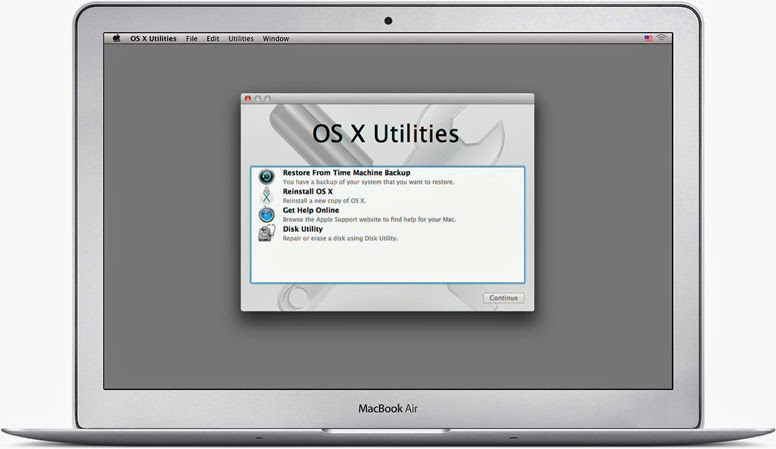
  3. Reboot into Recovery Mode (Hold down Command + R while powering up) - OK
    1. Run disk utility to repair disk - no problems reported
    2. Run disk utility to fix permissions - no problems reported
    3. Reinstall OS X - after 90 minutes the system failed to restart
    4. Repeat c) - after 2 hours the system reported an error
    5. Repeat c) - same result as c)
    6. Attempt to restore from Time Machine Backup - no Time Machine disk could be located
  1. PANIC
  2. Reboot in Single User Mode (Hold down Command + S while powering up) and run fcsk - no problems
  3. Reboot in Single User Mode and run Applejack - no problems
  4. Reboot and run Apple Hardware Test (Hold down D key while powering up) - standard and extended modes reported no problems
  5. PANIC more intensely
  6. Book Genius Bar Appointment (next slot in 48 hours time)
* For a full set of start-up options see this quick guide from Apple support.

Just for a moment, let's go back to step 6. Why couldn't the system find a Time Machine disk, especially given my tight backup regime? There was a Time Machine disk visible to Disk Utility but it really didn't look very happy. My shiny new 4Tb Seagate Backup Plus disk, sitting in its new Thunderbolt adapter was only showing one partition (there should be two) and that was only 500Gb (it should have been 2Tb).

Of course, whilst in panic mode, I'd forgotten that Seagate Backup Plus drives which are bigger than 2Gb need a special driver to work with the Thunderbolt adapter. In recovery mode, this driver wasn't getting loaded, and so the disk couldn't be recognised correctly. Hence the scary readings from Disk Utility.

To get round this, I had to replace the Thunderbolt adapter with the standard USB 3 adapter and try again. This time the backup drive was recognised and I could restore from the previous night's Time Machine backup.

Finally, the system rebooted although a load of settings had been screwed up. Some licences were missing, a number of configurations were screwed up - all in all, it didn't look much like the machine I crashed the night before. So the last task was to restore the CCC backup from the previous day, reboot one last time, keep fingers crossed and let out a big sigh of relief when everything booted up and looked like it was supposed to.

It just goes to show how important it is to have a rigorous backup strategy. If I'd had to go to the Genius bar it would have cost me another day, and the laptop could have been sent away for another week for a potentially expensive repair job (although luckily I still have 3 months left on my Apple Care warranty).

The only good thing that could have come out of a trip to Leicester Highcross Apple Store would have been to get an idea of the root cause - something I have not currently got, and probably won't ever have. But I think that would have been a long shot even for an Apple Genius.

One thing I do know. I'd much rather have to troubleshoot a Mac than a PC! At least Apple provide you with all the tools to help yourself - if you follow the advice from folks in the Apple community... and continue to read the Apple Harvest blog!

Happy Easter!